
September 9, 2026
Is My STL File Broken? Holes, Non-Manifold Edges, and Other Mesh Errors
The slicer suddenly refuses to slice a model, throws a cryptic warning about "non-manifold geometry," or — worse — the print comes out fine visually and then falls apart along a seam that was supposed to be a solid wall. Almost every time, the printer and the settings are innocent. The STL file itself is broken. The mesh got damaged somewhere back at export or download, and the slicer either refuses to guess what you meant, or quietly guesses wrong.
What "broken" actually means for an STL
An STL file is nothing more than a list of triangles that make up a surface. It carries no concept of inside versus outside — the slicer has to work that out itself, and it can only do that reliably if the surface is closed (no gaps) and every edge is shared by exactly two triangles. Break that assumption anywhere, even in one spot, and the slicer is left guessing where to lay down plastic and where to leave air. That's where the print artifacts come from that seem to have nothing to do with any setting in your profile.
Holes in the surface
The most common issue, and the easiest to picture: one or more triangles are simply missing, leaving a gap in the surface. The mesh stops being "watertight," and the slicer can no longer tell for certain what's inside the model near that gap — which usually shows up as thin spots, missing infill, or a wall that never gets built at all right where the hole is.
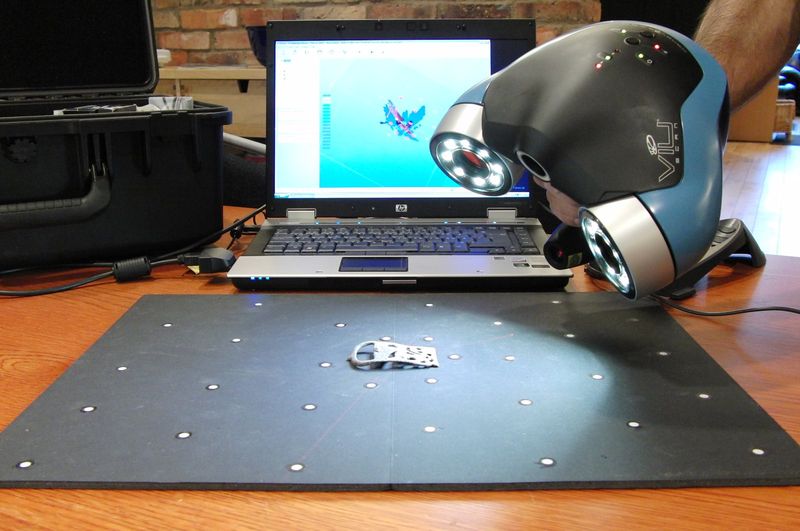
Holes show up most often in three situations: exports from CAD software after complex operations — especially boolean subtraction, where one solid is cut out of another — mesh simplification or decimation run without a follow-up check, and models that came from a 3D scan, where the scanner physically couldn't see part of the surface (the bottom of an object sitting on a turntable, for instance) and just leaves a gap there.
Non-manifold edges
An edge is "manifold" — topologically valid — when it's shared by exactly two triangles, the way every edge on a real solid object is. A non-manifold edge is one that's shared by three or more triangles at once (typically where a stray thin wall got fused onto the main body) or, at the other extreme, by only one — which is really just the rim of a hole described from a different angle.
Neither case has a real-world equivalent in an actual solid object, so the slicer has no reliable way to decide which side of the surface counts as "inside." The usual culprits: a sloppy boolean union of several overlapping bodies in one file, self-intersecting geometry somewhere in the model, or artifacts left behind by certain parametric CAD exporters.
Degenerate triangles
A degenerate triangle has zero area — its three vertices sit on a straight line, or two or three of them land on the exact same point. These don't look broken in a viewer, but they add noise to the geometry and can throw off the slicer's normal and volume calculations. They typically appear as a side effect of aggressive mesh simplification, or of exporting with low numerical precision, where vertices that were close together get merged into one.
Flipped normals
Every triangle in an STL carries a normal — a vector marking which side of the face counts as "outward." If normals are flipped on part of a model, or on the whole thing, the slicer can end up treating outside as inside and vice versa. The classic symptom of an inverted mesh: it looks completely normal in a 3D viewer, but slices as hollow where it should be solid, or the other way around.
Where these problems actually come from
Beyond the mechanics above, in practice broken meshes tend to trace back to one of three sources:
- Marketplace downloads (Thingiverse, Printables, MakerWorld), especially older files or ones that have been edited by several different people over the years — each pass through a different program is a chance to pick up a new artifact. If you're planning to print a downloaded model for sale, by the way, it's worth checking the license first — we've covered that separately in Is It Legal to Sell Prints Made From Someone Else's STL File?.
- Interrupted or corrupted downloads — a failed transfer, a damaged archive, a file that didn't finish saving when a program crashed.
- CAD exports with the wrong settings — too coarse a tessellation (too few triangles) approximating curved surfaces, so neighboring vertices that should line up exactly end up slightly apart, and the mesh never quite stitches into one continuous surface even though it looks fine visually.
How to check a file before you print
You don't have to wait for a cryptic slicer error, or for a part to fall apart after the fact — you can check the model ahead of time instead. We have a free tool for this: STL Repair. Upload an STL, 3MF, OBJ or GLB file (up to 80MB) and it checks the model right in your browser for all four problems covered in this article (plus duplicate faces, stray shells and inconsistent face orientation) — surface closure (with a count of hole boundaries, if any turn up), non-manifold edges, degenerate triangles, and flipped normals — and can fix them on the spot. Nothing gets uploaded anywhere — the whole thing runs locally, in your browser.
The tool doesn't just diagnose, it repairs: it welds gaps between vertices, removes degenerate triangles and duplicates, flips inverted faces and inside-out shells outward, deletes small stray shells (you choose the threshold), fills simple holes and pulls non-manifold "butterfly" vertices apart. The model is then re-checked, and a before/after table and a report show exactly what was done. What it does not fix: self-intersections (it only shows them) and complex holes — strongly non-planar ones or ones with a self-intersecting outline. For those, the next stop is Meshmixer (free — Analysis → Inspector), Blender (3D Print Toolbox), the built-in "Repair" button in Windows 3D Builder, or a slicer's own repair pass — PrusaSlicer and OrcaSlicer use the Netfabb engine for this. Checking and repairing work without an account; downloading the repaired model as STL or 3MF requires a free sign-in with your email.
Calculate your price in a minute
Free calculator: part weight, print time, material price — no sign-up needed.
 App Store
 Google Play
 RuStore
Bottom line
"Won't print" or "prints wrong" isn't always about printer settings — often the STL file itself was already compromised long before it reached the slicer, from an export, a download, or one too many trips through different editing software. Holes, non-manifold edges, degenerate triangles, and flipped normals are the four most common ways a mesh breaks, and all four can be checked for free in seconds — a lot cheaper than finding out the hard way, hours and a spool of filament later, that the file never stood a chance.