
October 7, 2026
STL Viewer Online Free: Open STL, 3MF, OBJ & GLB in Your Browser
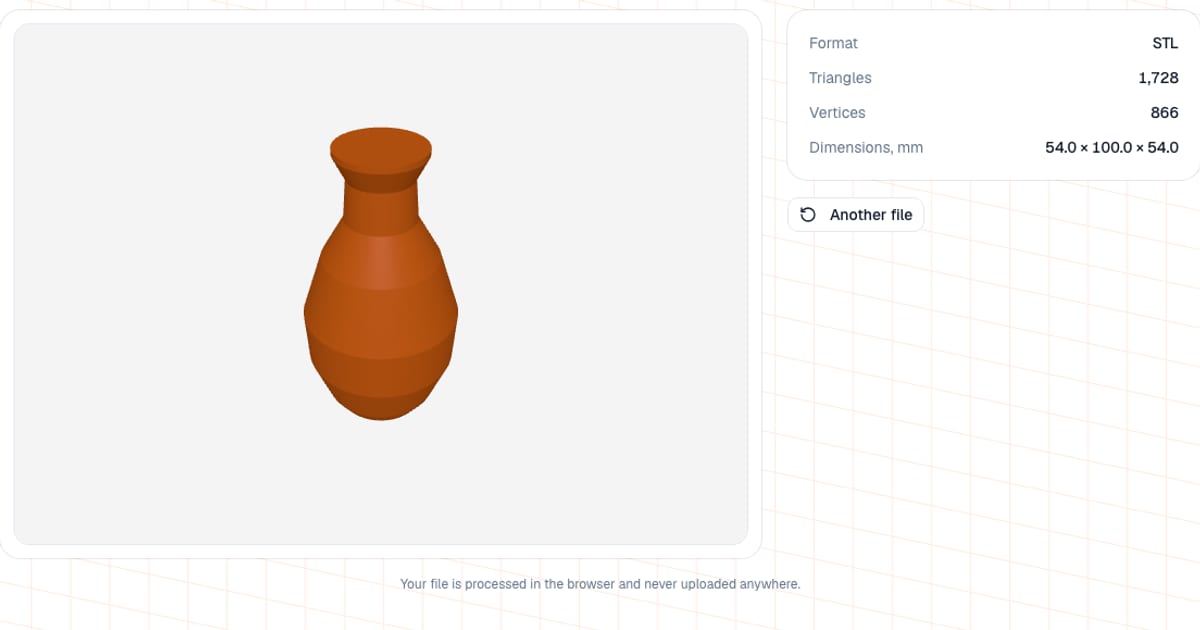
To view an STL, 3MF, OBJ or GLB file without a slicer or CAD software, open the free online 3D viewer and drop the file into the window. The model opens in your browser, you can rotate and zoom it, and the panel next to it shows the dimensions in millimeters and the triangle count. It is free, needs no sign-up, and the file never leaves your computer.
I built it for a very ordinary situation: someone sends you a file, or you download a model from Thingiverse or Printables, and you want to know what it is and whether it fits your bed before you install anything or open a slicer.
How do I open an STL file online?
- Open the viewer.
- Drag the file onto the box, click it to browse, or paste a copied file with Ctrl+V (Cmd+V on a Mac).
- Rotate the model: left mouse button orbits, the wheel zooms, right button pans. On a phone, one finger rotates and two fingers zoom.
- Read the info panel: format, triangles, vertices, and size in mm. "Another file" resets the view for the next model.
Which 3D file formats can it open?
The limit is 80 MB per file. The format is detected from the file extension: .stl, .3mf, .obj, .glb.
| Format | What the format itself stores | What the viewer shows |
|---|---|---|
| STL | Triangles only: no color, materials or units | The shape; coordinates are treated as millimeters |
| 3MF | ZIP + XML: geometry, units, color, multiple objects | Geometry only; all objects are merged into one body |
| OBJ | Geometry, optional normals and UVs, materials in a separate .mtl | Geometry only, no materials or textures |
| GLB | Binary glTF 2.0 (meters, Y-up), often with textures | Geometry, rescaled to mm and Z-up; textures are dropped |
Compressed GLB files (Draco and Meshopt) open too. Every model is drawn in the same orange color, so colors from a 3MF or GLB will not appear. That is enough to check shape and size; for multicolor assignments use your slicer.
How do I open a 3MF file?
3MF is the default project format in Bambu Studio, PrusaSlicer and OrcaSlicer, and Cura opens it too. If you do not have a slicer installed, drop the file into the viewer. A fun fact: a 3MF is just a ZIP archive. Rename it to .zip and you will find the geometry in an XML file inside the 3D folder. For simply looking at the shape, the browser viewer is faster.
What does the info panel tell me?
| Row | Meaning |
|---|---|
| Format | The file type detected from the extension |
| Triangles | Number of triangles in the mesh, a quick measure of how "heavy" the model is |
| Vertices | Number of unique vertices: points that coincide in coordinates count as one (a closed mesh typically has about half as many vertices as triangles) |
| Dimensions, mm | Width, depth and height along X, Y, Z, to 0.1 mm |
Check the dimensions first. If your bed is 256 x 256 mm (a Bambu Lab A1 or P1S, for example) and the part is 300 mm along one axis, you will need to split the model or use a bigger printer. The printer picker helps narrow down machines by size.
How big can a model be in triangles?
File size maps directly to geometry. A binary STL is an 84-byte header plus 50 bytes per triangle, so the 80 MB limit is roughly 1.6 million triangles. ASCII STL is several times heavier, so the same limit holds far fewer triangles. If your file is rejected, re-export it from your CAD or sculpting tool as binary STL with a coarser tolerance: for FDM printing a tolerance of a few hundredths of a millimeter is usually enough, and finer settings just inflate the file without a visible gain on the part.
Common problems when viewing a model
- The model looks tiny or huge. STL has no units, and everyone treats coordinates as millimeters. If the part was drawn in inches or meters, the dimensions in the panel will show it immediately. Fix it with scaling in your slicer.
- A GLB model is oriented strangely. glTF uses meters with Y up, while printing uses millimeters with Z up. The viewer multiplies by 1000 and rotates the model for you. If the dimensions still look odd, the GLB was probably authored at an arbitrary scale (common with AI generators), so scale it in the slicer.
- You see a "3D view unavailable" message instead of the model. WebGL is not available in your browser (hardware acceleration is off or the graphics driver is old). Turn hardware acceleration on in the browser settings or try another browser.
- The model looks fine but prints badly. The viewer shows the shape; it does not check the mesh for holes or non-manifold edges. See Is My STL File Broken? for what to look for, and use STL Repair to check and fix a file.
- The file is over 80 MB or in another format. You get an error message. STEP, FBX, PLY, BLEND and similar formats are not read: export them from your CAD or editor to STL, 3MF, OBJ or GLB. To move between the supported formats, use the converter.
When should I use a different viewer?
I am not trying to replace everything; each option has its job:
- A slicer (PrusaSlicer, Bambu Studio, OrcaSlicer, Cura) is the right place when you are going to print anyway: it shows colors, adds supports and slices the model. If one is already installed, opening the file there is quicker.
- Online 3D Viewer (3dviewer.net) and similar tools support more formats, including STEP. If your file came from CAD, try them first.
- Blender or MeshLab are for measuring between points, cutting with a plane or editing the mesh. This viewer cannot do that; it only shows the model.
- This viewer is for the ten-second question "what is this file and how big is it", on any device with nothing to install, and with no upload to someone else's server.
The viewer cannot export the model back or convert formats. For that there is a separate converter, and the overhang checker tells you whether the model will need supports.
What next?
Once the model is open and the size is right, estimate what it costs to print by loading it into the calculator, or read how to calculate 3D printing cost. If your slicer complains about a file that looks fine, start with common STL mesh errors.
Frequently asked questions
- How do I open an STL file online without installing anything?
- Open the viewer page and drop the STL into the window, or click the box and pick the file, or paste it from the clipboard with Ctrl+V. The model appears in 3D so you can rotate it, with its size in mm and triangle count shown next to it. No account is needed.
- Is there a free 3MF viewer online?
- Yes, you can drop a 3MF into the viewer and it opens in your browser. It shows the geometry only, so colors and materials stored in the 3MF are not displayed. Slicers such as Bambu Studio, PrusaSlicer, OrcaSlicer and Cura also open 3MF files.
- Which formats does the online 3D viewer support?
- STL, 3MF, OBJ and GLB. Other formats such as STEP or FBX are not read, so export them from your CAD or modeling tool to one of these four first. Blender (.blend) files do not open here either: they cannot be parsed in the browser, and this viewer never sends anything to a server. There is a separate converter for .blend, but there the file is sent to our server for conversion.
- Is there a file size limit?
- Yes, 80 MB. A binary STL takes 50 bytes per triangle plus a small header, so the limit is roughly 1.6 million triangles. ASCII STL files are much heavier for the same geometry.
- Is my STL file uploaded to a server?
- No. STL, 3MF, OBJ and GLB files are parsed in your browser and never uploaded, so it is safe to use with private or client projects.
- Can I check the dimensions of a model in the viewer?
- Yes. The info panel lists the X, Y and Z size in millimeters, plus the triangle count and the number of unique vertices. It reports the size of the bounding box; there is no point-to-point ruler.
- Do I need to sign in to view a 3D model?
- No. The viewer works without an account and without a limit on the number of files.